503 Error
HTTP 503 errors are often caused by a malfunction in PHP. It is rare for the web server to cause an HTTP 503 error, but rule that out first by checking whether the error also occurs with Apache.
Does it Occur with Apache?
If your server is running on an Apache control panel, such as cPanel or Plesk, there is an easy way to determine whether an issue is caused by your LiteSpeed server:
- Temporarily switch to Apache
- Repeat the steps that originally led to the issue.
Are you able to reproduce the error under Apache?
NO
If the error could not be triggered under Apache, then the problem is likely to be a LiteSpeed server issue. Please open a ticket from your client area or email support@litespeedtech.com and provide as many details as possible, so that we may assist you.
YES
If Apache experiences the same problems, then the issue is not a LiteSpeed Web Server issue.
Switch back to LiteSpeed Web Server, and keep reading! Even though it is not a server problem, we have provided the following troubleshooting documentation that we hope will help you to find the solution.
Tip
Overwhelmed? Don't have the time or interest to deal with these steps? We can help. Engage our team through Hourly Support, and we'll do the troubleshooting for you!
Warning
If you are running LiteSpeed Web Server 5.3 or later, restart PHP separately from LiteSpeed Web Server.
sudo touch /usr/local/lsws/admin/tmp/.lsphp_restart.txt
sudo systemctl restart lsws
Quick troubleshooting guide
Before engaging the Support Team’s Premium Support service, try these simple steps to see whether you can correct the error yourself:
- Check the
phpinfo()page for the affected user account. Create aphpinfo.phpfile if nophpinfo()page exists. - Check the server
error_logorstderr.logfor clues about the problem. For example, the issue may be related to memory. - Disable the opcode cache for the PHP version in use, and verify the result from the
phpinfo()page. - Disable unsafe PHP extensions, such as ZendGuardLoader, Suhosin, and ionCube.
- Check disk space.
- Try increasing the PHP memory limit, which you can verify from
phpinfo.php, and the LiteSpeed PHP external application memory limit. - If you are using CloudLinux:
- Check whether the LVE memory limit needs to be increased.
- Check whether the LVE process limit needs to be increased.
- Try to force an update of CageFS.
These are only a few quick fixes to try first. If they do not help, refer to the following log files for detailed troubleshooting steps, or engage the Support Team’s Premium Support service.
Check log files
Many log files may help determine the cause of an HTTP 503 error. This section discusses the log files, their locations, and the information they provide.
When troubleshooting HTTP 503 errors, check these logs in the following order:
Standard error log stderr.log
The stderr.log file contains standard errors generated while PHP is running. It can usually be found in either the /var/log/apache2/ or /usr/local/lsws/logs/ directory. This log is usually the most helpful when determining why PHP is returning HTTP 503 errors.
Example
Example output from a standard error log:
[STDERR] fork() failed, please increase process limit: Cannot allocate memory
Web server error log
This error log is generated by the web server. It can usually be found in either the /var/log/apache2/ or /usr/local/lsws/logs/ directory. The web server error log may provide helpful clues about whether the web server caused PHP to fail.
Example
Example output from a web server error log:
[INFO] [319934] [192.0.2.1:49873-1#APVH:lsapi] connection to [uds://tmp/lshttpd/APVH-php56.sock] on request #0, confirmed, 0, associated process: 0, running: 0, error: Too many open files!
The following command can show how many HTTP 503 errors have been generated and whether new errors occurred since your last attempted fix. Check the timestamps to identify new errors. However, the error log often does not identify why the HTTP 503 error occurred. It shows only when it happened and the affected domain.
grep oops /etc/apache2/logs/error_log
System log
This error log is generated by the operating system. It can usually be found at either /var/log/messages or /var/log/syslog. This log is helpful if PHP is being affected by the operating system.
Example
Example output from a system log:
lfd[18304]: *User Processing* PID:18264 Kill:1 User:xxxxx VM:538(MB) EXE:/usr/local/lsws/fcgi-bin/lsphp-5.4.42 CMD:lsphp5
This entry shows that the LiteSpeed PHP process was killed by the LFD firewall security feature. Exclude the LiteSpeed PHP process from LFD.
PHP error log
This error log is defined in php.ini. Check phpinfo.php to identify the configured PHP error_log. By default, cPanel sets it to error_log. PHP generates this log when it detects an error or warning, depending on the PHP log level. It is usually generated in the same folder where the PHP script runs.
Example
Example output from a PHP error log:
Fatal error: Call to undefined function my_function() in /home/example/public_html/test.php on line 2
These errors are usually found within the PHP application you are trying to run. Forward these logs to the application developer for assistance.
Troubleshooting
Basic
Display errors
In a production environment, PHP application errors are commonly hidden to help secure the server if an issue occurs. However, this is counterproductive when diagnosing HTTP 503 errors.
If you are experiencing HTTP 503 errors for a specific site or domain, add the following code immediately after the opening <?php tag in the affected script:
<?php
ini_set('display_errors', 1);
ini_set('display_startup_errors', 1);
error_reporting(E_ALL);
When you visit the web page, it may display an error such as the following:
Fatal error: Call to undefined function my_function() in /home/example/public_html/test.php on line 2
This normally indicates an issue in the application code rather than the web server. Check Stack Overflow or contact the software developer for a fix.
Note
After recording the error, revert the file to its previous state to help keep the server secure.
PHP info page
The PHP info page provides details about the PHP installation. This basic file should not return an HTTP 503 error.
<?php
phpinfo();
?>
Note
If the PHP info page returns an HTTP 503 error, skip this section.
The PHP info page provides useful information, including:
- extensions;
- memory limit;
- execution time; and
- other settings.
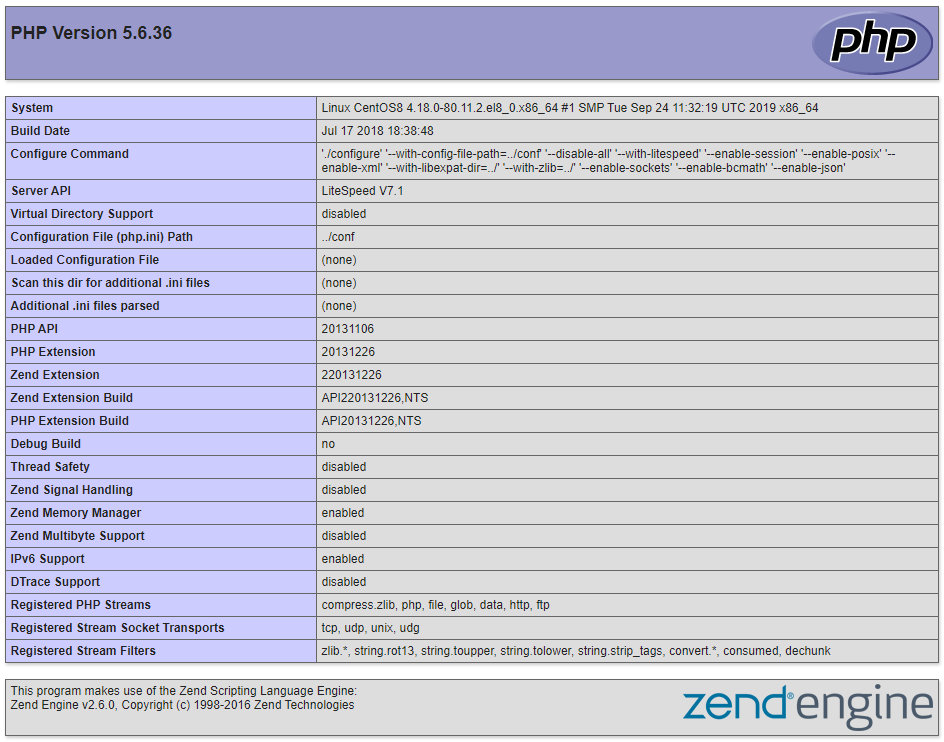
With this information, you can see whether OPCache is enabled, what the memory limit is, and which extensions are loaded. This information may help identify the cause of an HTTP 503 error.
This page can also compare differences between Apache and LiteSpeed PHP implementations.
Note
If the Apache and LiteSpeed PHP info pages differ, open a ticket with the Support Team for assistance.
Extensions
The following PHP extensions have been known to cause issues, especially when they are outdated:
- Imunify360
- ZendGuardLoader
- Suhosin
- ionCube
Regularly check for updates to these extensions. If you are already using the latest versions, disable them and check whether the problem persists.
If disabling these extensions does not correct the HTTP 503 error, disable other extensions that are not enabled by default, and check again.
OPCache
OPCache stores bytecode in shared memory so PHP does not need to process the same calls repeatedly. However, it can occasionally cause issues. When troubleshooting HTTP 503 errors, disable OPCache.
Common opcode cache extensions include:
- OPCache
- APC/u
- XCache
- eAccelerator
Error
The following error may point to OPCache:
[STDERR] zend_mm_heap corrupted
Disk space
PHP may store files on the server to function properly. If disks become full, especially the partition containing /tmp/, this could cause an HTTP 503 error.
To check disk space usage, run the following command:
sudo df -h
Example
Example output:
Filesystem                          Size  Used Avail Use% Mounted on
devtmpfs                            901M     0  901M   0% /dev
tmpfs                               915M   96K  915M   1% /dev/shm
tmpfs                               915M   89M  827M  10% /run
tmpfs                               915M     0  915M   0% /sys/fs/cgroup
/dev/mapper/cl_centos                29G  4.2G   25G  15% /
/dev/vda1                           976M  184M  726M  21% /boot
tmpfs                               183M     0  183M   0% /run/user/0
If disks are full, remove unused and old files. This may correct the HTTP 503 error.
Memory limit
When PHP reaches its allocated memory limit, it can crash. PHP must adhere to two memory limits: its internal memory limit, which is set in php.ini, and the LiteSpeed Web Server memory limit, which is set for spawned PHP processes.
Example
The following errors may indicate a memory issue:
Fatal error: Allowed memory size of 33554432 bytes exhausted (tried to allocate 12864 bytes)
[STDERR] fork() failed, please increase process limit: Cannot allocate memory
PHP memory
If you receive a memory error such as one of the preceding examples, first increase the memory limit. Adjust the following setting in php.ini:
memory_limit = 100M
To determine the location of php.ini and identify the current memory limit, create a PHP info page.
<?php
phpinfo();
?>
Scripts may append lines to .htaccess to override PHP settings. This can override the setting in php.ini.
The following is an example memory_limit entry in .htaccess:
php_value memory_limit xxxM
You can add, delete, or modify this line in .htaccess as needed.
CloudLinux memory limit
If you are using CloudLinux and Lightweight Virtual Environment (LVE), the account may be reaching its configured limits.
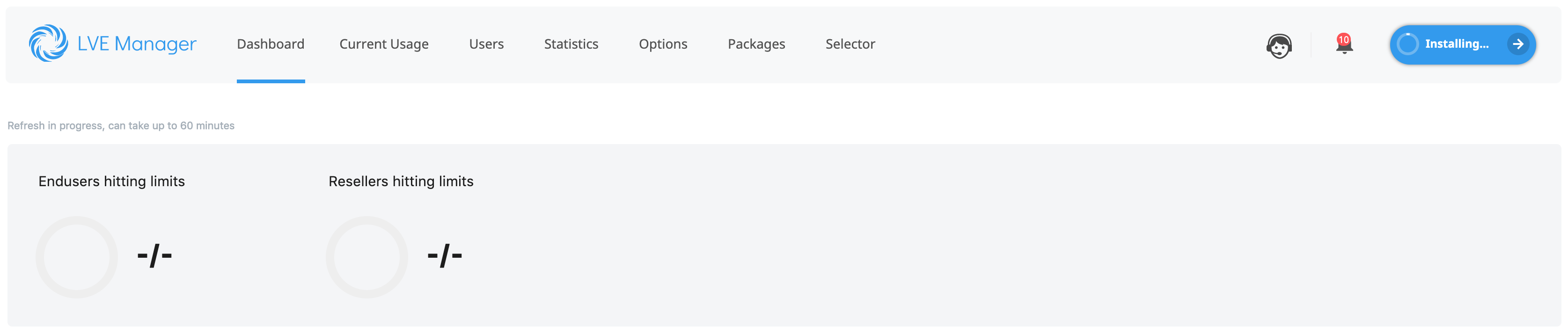
This page shows accounts that have reached a limit. Adjust the limit that the account has reached. See CloudLinux’s guide for instructions.
LiteSpeed PHP process memory
If you have increased the memory limit in php.ini and confirmed that the account is not reaching an LVE limit, LSPHP may need a higher virtual memory limit.
- Navigate to Configuration > Server > PHP in the WebAdmin Console.
- Select Edit for PHP Handler Defaults.
- Change the following settings, and then select Save:
- Memory Soft Limit:
4097M - Memory Hard Limit:
4098M - Navigate to Actions > Restart Detached PHP Processes, and then select Apply Changes / Graceful Restart.
Max execution time
If the maximum execution time is not high enough for long-running requests, the web server error log may show error: Connection reset by peer! and a value of 0, meaning that the process never completed the request. These errors are often explained in stderr.log.
If stderr.log does not provide useful information, increase the maximum execution time by following the Control guide.
PHP suEXEC Max Conn
The following entry may appear in stderr.log:
[30117] Reached max children process limit: 10, extra: 3, current: 13, busy: 13, please increase LSAPI_CHILDREN.
This means that PHP SuEXEC Max Conn is set to 10, but the domain needs 13 PHP processes. To increase LSAPI_CHILDREN, navigate to LSWS WebAdmin > Server > General > PHP suEXEC Max Conn, and increase it to a higher value. For this example, use 20.
Restart LiteSpeed Web Server and run pkill lsphp so the new setting takes effect. If the errors persist, continue increasing PHP SuEXEC Max Conn until the errors stop.
CSF/LFD
If CSF/LFD is installed, it may be causing the HTTP 503 error by killing the process before it finishes. CSF/LFD has two settings that can kill an LSPHP process: PT_USERTIME and PT_FORKBOMB.
Kill
If an LSPHP process takes too long to complete, PT_USERTIME may kill the process. If this occurs, you may receive an email or find an entry such as the following in /var/log/lfd.log:
lfd[18304]: *User Processing* PID:18264 Kill:1 User:xxxxx VM:538(MB) EXE:/usr/local/lsws/fcgi-bin/lsphp-5.4.42 CMD:lsphp5
Whitelist the LSPHP process in CSF/LFD to prevent this from occurring.
Run the following commands:
echo "pexe:/usr/local/lsws/fcgi-bin/lsphp.*" | sudo tee -a /etc/csf/csf.pignore
sudo csf -r
sudo service lfd restart
Forkbomb
In rare cases, LSPHP may be killed by PT_FORKBOMB when too many processes are spawned at one time. This can send signal 9 (SIGKILL) to the main LiteSpeed Web Server process.
To stop CSF/LFD from killing the LSPHP and LiteSpeed Web Server processes, adjust the following settings in /etc/csf/csf.conf:
PT_LIMIT - Default: 10
PT_USERPROC - Default: 10
PT_FORKBOMB - Default: 0
PT_INTERVAL - Default: 60
Adjust these settings on a case-by-case basis because each scenario differs. Increase them slightly above their current values until the issue stops occurring.
For the changes to take effect, restart both CSF and LFD. You can do this through the WHM plugin or by running the following command:
sudo csf -r
sudo service lfd restart
Extension mismatch
Running LSPHP extensions that were not built for the version of LSPHP in use may cause an HTTP 503 error. If this occurs, stderr.log may contain the following message:
Warning: PHP Startup: imap: Unable to initialize module
Module compiled with module API=20090626
PHP compiled with module API=20100525
These options need to match in Unknown on line 0
To fix this issue, rebuild the module or PHP, ensuring that the PHP version is compatible with the module. Also, ensure that the correct extension path is configured.
Extension loading order
Some PHP extensions require other extensions to be loaded first. This is configured by renaming an extension configuration file from mysql.so to 20-mysql.so. The 20- prefix indicates loading priority. It can be changed from 01- to 99-, with lower values loading before higher values. See the PHP documentation for more information.
If this causes the issue, stderr.log may contain the following entry:
PHP Warning: PHP Startup: Unable to load dynamic library
Open files limit
If the following entry appears in the web server error log, the system has reached its open-file limit:
[INFO] [319934] [192.0.2.1:49873-1#APVH:lsapi] connection to [uds://tmp/lshttpd/APVH-php56.sock] on request #0, confirmed, 0, associated process: 0, running: 0, error: Too many open files!
To check the current limit, run the following command:
ulimit -n
To increase the limit, run the following command:
ulimit -n <increased_number>
After increasing the limit, LSPHP should be able to open more files.
Resource temporarily unavailable
If you are using WordPress, you may see the following error when working with images or graphics:
libgomp: Thread creation failed: Resource temporarily unavailable
This is likely caused by the PHP ImageMagick module, which can consume significant resources. Try increasing the PHP memory_limit in php.ini, the LSPHP external application memory limit, or both. For example, set the limit to 8G.
PHP code issue
Incorrect PHP code or a buggy script can create too many PHP connections or a loop, which can cause HTTP 503 errors. Use strace on the PHP process to identify the cause, and then optimize the PHP code or script.
HTTP/2 protocol errors
If a request that normally succeeds instead hangs until it reaches the timeout and then returns an HTTP 503 error—especially on LiteSpeed 6.3.6 build 0 or later, where HTTP/2 header validation was strengthened—the application may be producing a response that fails HTTP/2 protocol validation. For example, the response may contain a Content-Length value that does not match the bytes sent or a malformed response header. See Troubleshooting HTTP/2 Protocol Errors.
Advanced
The preceding guide lists the most likely causes of an HTTP 503 error, but the root cause can be difficult to locate. If PHP crashes, enable a core dump and use GDB to debug the core file. Even if you find an internal PHP bug causing the crash, your available actions may be limited. You can disable the module or switch to a PHP version without the bug. Reporting the bug to PHP is also an option, but a solution may not be provided promptly.
If a core file was generated and you have tried all of the preceding methods without finding a solution, use strace on the PHP process for more information. Be aware that the strace log may be very long and difficult to interpret.
Strace
Use the following command to trace the PHP process:
strace -tt -T -f -p <pid>
This command shows what PHP is doing and where the issue occurs.
Example
The web server log may contain an entry such as the following:
[INFO] [192.0.2.1:48506] connection to [/tmp/lshttpd/APVH_example_Suphp.sock] on request #0, confirmed, 1, associated process: 791228, running: 1, error: Connection reset by peer!
Use the process ID from associated process: 791228 to run the following command:
strace -tt -T -f -p 791228
Tip
PHP may run too quickly for you to obtain its process ID. In this case, trace the parent process ID. However, tracing the parent process may produce unrelated information that makes the relevant pattern difficult to find.
You can use a script to capture the process ID. This depends on the SuEXEC user and the script PHP is running, such as index.php.
while true; do if mypid=`ps aux | grep $USERNAME | grep lsphp | grep $SCRIPTNAME | grep -v grep | awk '{print $2; }' | tail -1`; then strace -tt -T -f -p $mypid; fi; done
Replace $USERNAME with a real username. Replace $SCRIPTNAME with the name of the script that is running, such as index.php.
Core files
If PHP crashes, as indicated by a process being killed by a signal other than 15, a core dump can help identify the cause of the crash. Core files are usually generated in the folder where PHP crashed.
Enable core files
This section assumes that core dumps are already enabled for CentOS or Ubuntu.
- Navigate to Configuration > Server > PHP in the WebAdmin Console.
- Select Edit for PHP Handler Defaults.
- Change the following setting, and then select Save:
- Environment:
LSAPI_ALLOW_CORE_DUMP=1 - Navigate to Actions > Restart Detached PHP Processes, and then select Apply Changes / Graceful Restart.
Analyze core files
GNU Debugger (GDB) uses the following syntax:
gdb <path/to/lsphp/binary> <path/to/core/file>
<path/to/lsphp/binary> is the path to the PHP binary that the application used. <path/to/core/file> is the path to the core file.
After running the command, you will see a (gdb) prompt. Type bt, and then press Enter to view the backtrace.
The output may resemble the following:
gdb <path/to/lsphp/binary> <path/to/core/file>
Program received signal SIGSEGV, Segmentation fault.
0x000000000061c91b in ?? ()
(gdb) bt
#0 0x000000000061c91b in ?? ()
#1 0x0000000000641ac3 in zend_stack_push ()
#2 0x000000000060bbf9 in ?? ()
#3 0x0000000000611515 in lex_scan ()
#4 0x000000000061fb60 in ?? ()
#5 0x0000000000608223 in ?? ()
#6 0x0000000000614965 in compile_file ()
#7 0x00007fd3c99eda21 in ?? () from /opt/alt/php55/usr/lib64/php/modules/phar.so
#8 0x00007fd3d0993359 in ?? () from /opt/alt/php55/usr/lib64/php/modules/opcache.so
#9 0x00007fd3d0994187 in ?? () from /opt/alt/php55/usr/lib64/php/modules/opcache.so
#10 0x00000000006b54da in ?? ()
#11 0x00000000006b68e8 in execute_ex ()
#12 0x000000000064239c in zend_execute_scripts ()
#13 0x00000000005e2fb0 in php_execute_script ()
#14 0x00000000006f29ff in ?? ()
#15 0x00000000006f2c5c in ?? ()
#16 0x00000000006f2f85 in ?? ()
#17 0x00007fd3d37cdd1d in __libc_start_main () from /lib64/libc.so.6
#18 0x0000000000424bc9 in _start ()
This output shows that phar.so and opcache.so were among the modules loaded when PHP crashed. Disable phar.so and opcache.so to identify which module is causing the issue.
Advanced
You can investigate the core file further to identify the function causing the issue.
Run the following commands:
(gdb) frame 13
(gdb) print (char *)(executor_globals.function_state_ptr->function)->common.function_name
(gdb) print (char *)executor_globals.active_op_array->function_name
(gdb) print (char *)executor_globals.active_op_array->filename
It is fine if these commands return blank output. Continue running them to help identify the file or function causing the issue.
For more information about debugging PHP core files, see the PHP documentation.
Auto Fix 503
Warning
This feature does not fix HTTP 503 errors permanently. It only masks them. Follow the preceding troubleshooting steps to identify and correct the underlying issue.
LiteSpeed Web Server’s WebAdmin Console includes the Auto Fix 503 Error setting. This setting determines whether LiteSpeed Web Server attempts to address a 503 Service Unavailable error by restarting gracefully.
An HTTP 503 error is usually caused by malfunctioning external applications, and a web server restart can temporarily correct the error. If Auto Fix 503 Error is set to Yes, the server automatically restarts whenever more than 30 HTTP 503 errors occur within 30 seconds. The feature is disabled by default. To enable it, navigate to LSWS Admin > Server > General and set Auto Fix 503 Error to Yes.
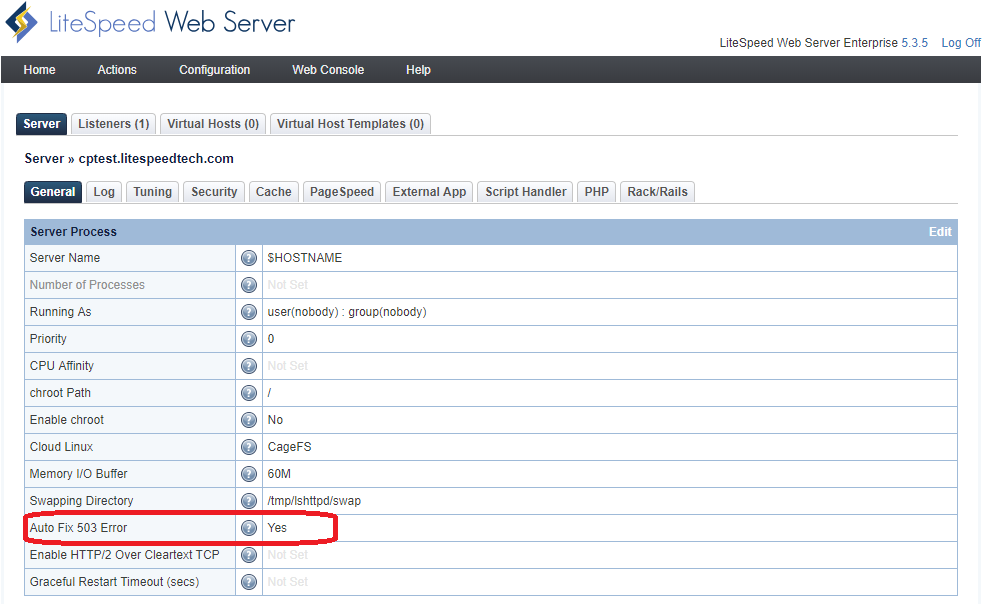
Auto Fix 503 Error is not a permanent solution. Do not rely on this feature to resolve recurring HTTP 503 errors. Follow the preceding troubleshooting steps to find a permanent fix.