WordPress Cache Management
This page covers the various cache-management options available through our DirectAdmin plugin's GUI interface. Most of these options are also available through the command line as the root user using our lscmctl CLI script.
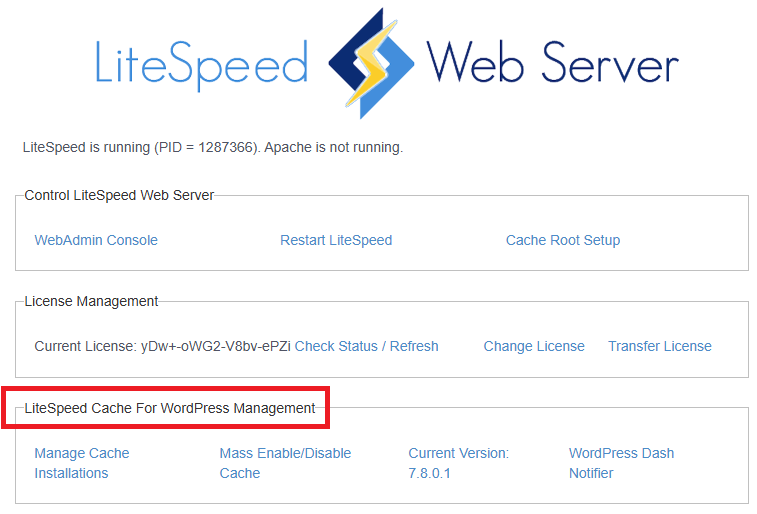
If you do not see the LiteSpeed Cache For WordPress Management section on your LiteSpeed DirectAdmin plugin screen, please upgrade LiteSpeed Web Server to v5.1.x at the minimum.
You must have a license with LSCache enabled to use these features. See Add LSCache to an Existing License.
Cache root setup
Equivalent CLI commands: setcacheroot
Example: ./lscmctl setcacheroot (See all CLI commands)
In the LiteSpeed plugin, navigate to Control LiteSpeed Web Server > Cache Root Setup.
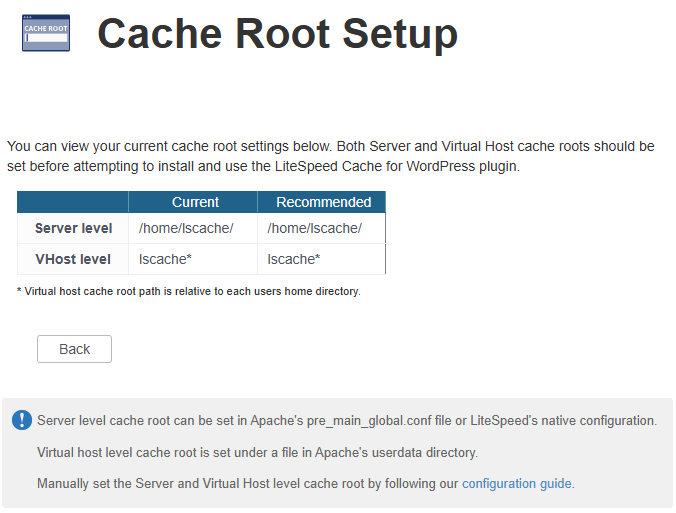
This screen displays server-level cache root definitions it finds in either the /etc/httpd/conf/extra/httpd-includes.conf file or in the LiteSpeed Web Server Web Admin under Server > Cache > Cache Storage Settings > Storage Path setting.
If it is defined in httpd-includes.conf it should look something like this:
<IfModule LiteSpeed>
CacheRoot /home/lscache/
</IfModule>
Where /home/lscache/ is the CacheRoot path. In this case, the server-level cache root will be set to /home/lscache/.
This screen also displays vhost-level cache root definitions it finds in the /usr/local/directadmin/data/templates/custom/cust_httpd.CUSTOM.2.pre file.
If it is defined in cust_httpd.CUSTOM.2.pre it should look something like this:
<IfModule LiteSpeed>
CacheRoot lscache
</IfModule>
Where lscache is the CacheRoot path. In this case, the VHost level cache root will be set to /home/<user_folder>/lscache.
If at least one of the two cache roots is detected as "not set," the Set Missing Cache Roots button will appear. Press the button to set the missing cache roots.
Getting started
From the initial plugin screen you should be presented with four different options under the LiteSpeed Cache For WordPress Management section.
- Manage Cache Installations allows you to manage LiteSpeed Cache for WordPress on your individual WordPress installations.
- Mass Enable/Disable Cache can be used to enable/disable the LiteSpeed Cache Plugin for WordPress on all discovered WordPress installations which are not flagged (more on flags later).
- Version Manager displays the currently active LSCache for WordPress version (more on the Active Version later). It also allows you to adjust this active LSCache for WordPress version and to upgrade and downgrade LSCache for WordPress installations based on their current version.
- WordPress Dash Notifier is used to recommend a plugin or broadcast a message to all discovered WordPress installations using the Dash Notifier plugin for WordPress.
Manage Cache Installations
Equivalent CLI commands: scan, scannew, enable, disable, flag, unflag, status
Example: ./lscmctl scannew (See all CLI commands)
The manage view is where most of the magic happens. Here you can manage the LiteSpeed Cache Plugin for WordPress for your WordPress installations individually or in small groups. (There is nothing wrong with big groups, but that is what Mass Enable Cache and Mass Disable Cache are for)
The first time, a user may see only a Scan button available
After a scan and cache is enabled, it will look like this:
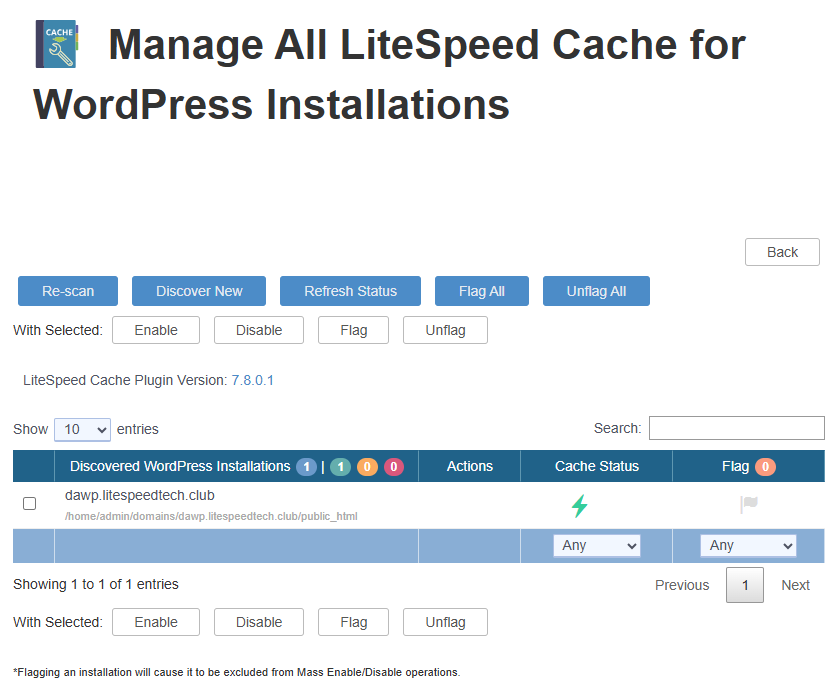
The table lists all discovered WordPress installations, and displays the following fields:
- Discovered WordPress Installations: This field will contain the path of each WordPress installation discovered during the last scan operation.
- Actions: This field contains action buttons that perform a specific action only for the related WordPress installation. These actions include Enable/Disable the LiteSpeed Cache Plugin for WordPress, and Refresh Status which updates the current status of LiteSpeed Cache for WordPress for this installation only.
- Cache Status: Displays the last known status of LiteSpeed Cache for WordPress for the listed WordPress installation.
- Flag: Click to set Flag/Unflag. This field can either be blank or display a flag icon. While an installation is flagged, displaying the flag icon, it will be excluded from all future Mass Enable/Disable operations.
Above the table, the top row of buttons include the following:
- Scan/Re-scan: Discovers all WordPress installations under each user's
public_htmlfolder. These discovered installations will then be saved to a data file and displayed in the manager screen. If this data file is removed or corrupted, simply scan again to repopulate the list. - Discover New: Discovers all WordPress installations belonging to users not already listed in the Discovered WordPress Installations section. This will NOT discover new WordPress installations for existing users. For these cases, Scan/Re-scan should be used instead.
- Refresh Status: Each listed WordPress installation will have a Cache Status of either
EnabledorDisabledreflecting the status of the LiteSpeed Cache Plugin for WordPress for that installation. The Refresh Status button will update this value to the most current status for all listed WordPress installations. - Flag All & Unflag All: Flags or unflags every listed WordPress installation. Flagged installations will be excluded from Mass Enable Cache and Mass Disable Cache operations.
The buttons in the bottom row are used to perform group operations. These buttons work in tandem with the check-boxes found next to each discovered installation to allow you to perform some basic operations for only the selected group.
- Enable & Disable: These buttons allow you to enable and disable the LiteSpeed Cache Plugin for WordPress for the selected WordPress installations.
-
Flag & Unflag: These buttons allow you to set or unset the flag field for the selected WordPress Installation. Flagged installations will be excluded from Mass Enable Cache and Mass Disable Cache operations.
-
LiteSpeed Cache Plugin Version: This label shows the currently active version of the LSCache Plugin for WordPress. Clicking the version number listed here will take you to the Version Manager screen.
Mass Enable/Disable Cache
Equivalent CLI commands: enable, disable
Example: ./lscmctl enable -m (See all CLI commands)
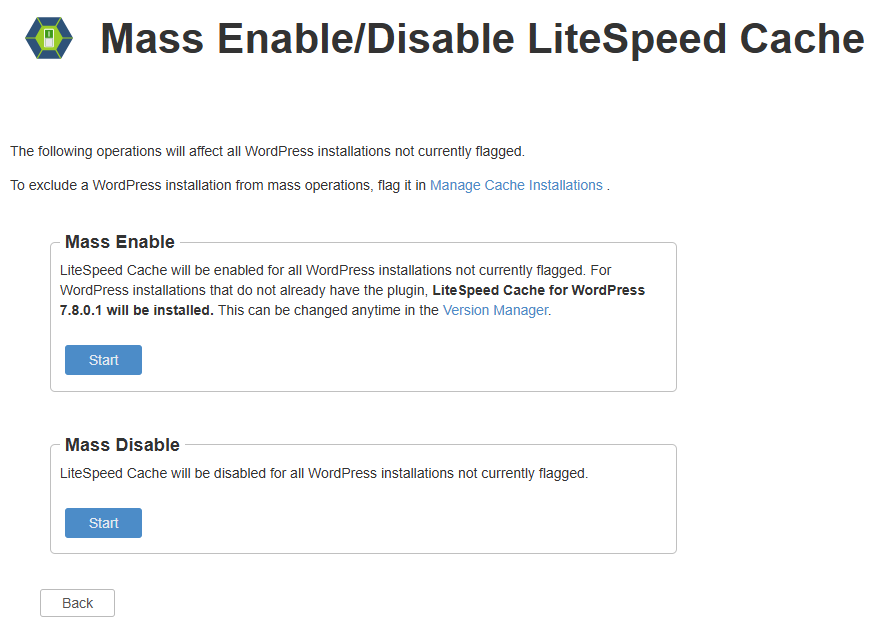
The Mass Enable and the Mass Disable functions each behave in a very similar way by allowing you to enable/disable the LiteSpeed Cache Plugin for WordPress en masse.
When mass enabling/disabling the LiteSpeed Cache Plugin for WordPress, all WordPress installations that are not currently flagged in the Manage Cache Installations screen will have the LiteSpeed Cache Plugin for WordPress installed/removed. If a WordPress installation is detected as manually disabled, the DirectAdmin plugin will flag it and skip it. During this operation, you should see the following output screen.
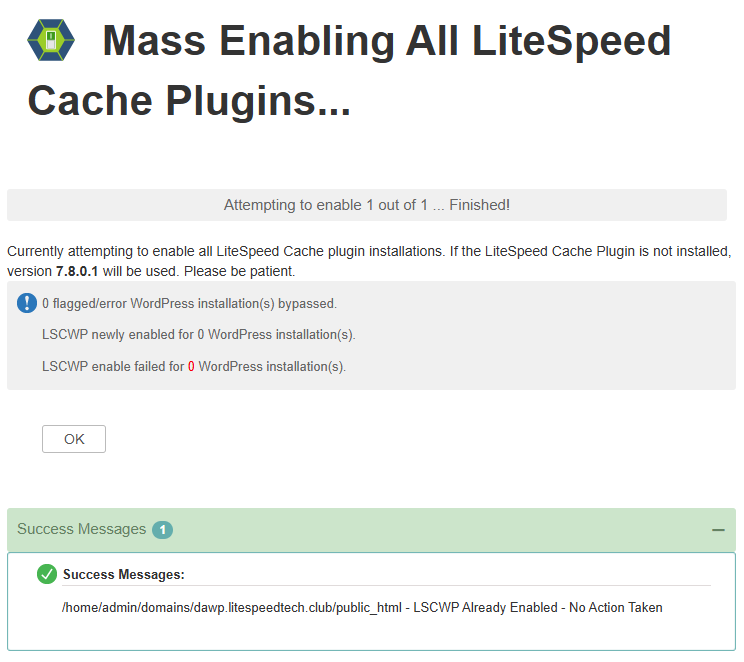
After this operation is complete you will get a short summary message letting you know how many installations had LiteSpeed Cache for WordPress enabled/disabled successfully and how many failed, as well as how many flagged installations were detected and skipped over. You will also be provided with both an error log and a success log shown under these results listing the installations that were enabled and those that failed along with the related error messages.
Note
If you have not performed a scan before clicking on Mass Enable/Disable Cache buttons, or your previous scan data is unable to be read by the plugin, you will be asked to scan again.
Version manager
Equivalent CLI commands: setversion, upgrade
Example: ./lscmctl setversion --latest (See all CLI commands)
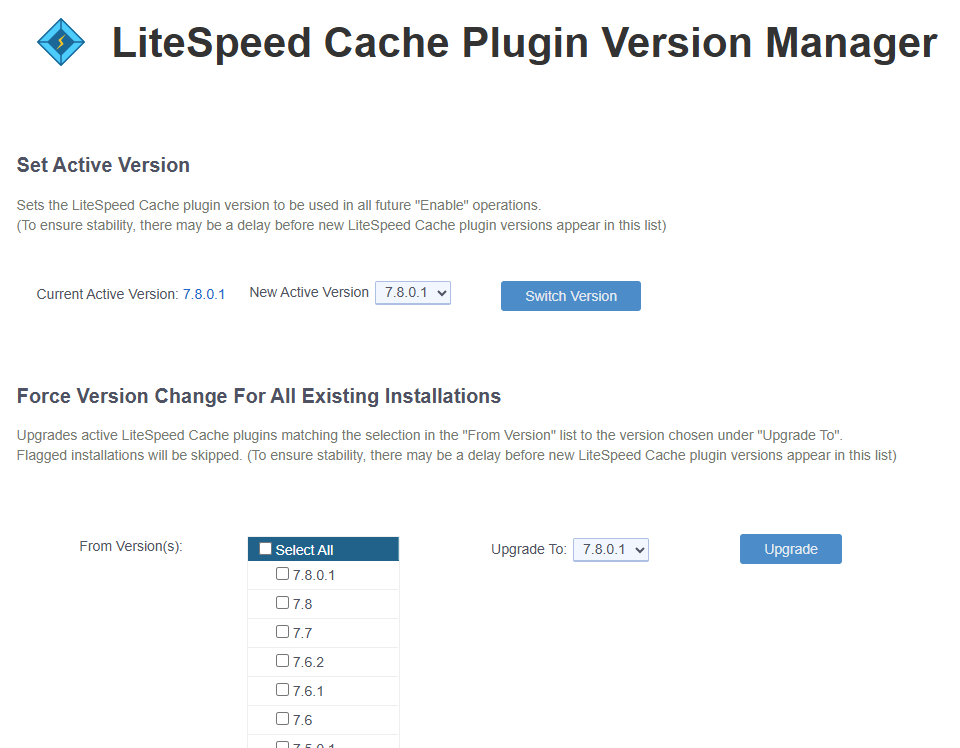
- Set Active Version: Allows you to change the Active Version of the LiteSpeed Cache Plugin for WordPress. The Active Version is the LSCache for WordPress version that is used when the DirectAdmin plugin enables or mass enables caching for WordPress installations.
- Force Version Change For All Existing Installations: Allows you to change the version of existing LiteSpeed Cache Plugin for WordPress installations, allowing you to select which to change based on current cache version.
WordPress Dash Notifier
Equivalent CLI commands: dashnotify, dashnotifyremove
Example: ./lscmctl dashnotify -m -plugin litespeed-cache -msgfile /path/to/msg/file (See all CLI commands)
The WordPress Dash Notifier feature is used to recommend a WordPress plugin or broadcast an informational message to all discovered WordPress installations. These messages will appear in the WordPress Dashboard of each site.
This tool is especially useful for hosting providers who wish to suggest the LiteSpeed Cache Plugin for WordPress to their clients, rather than installing it directly for them via Mass Enable.
Recommend a plugin
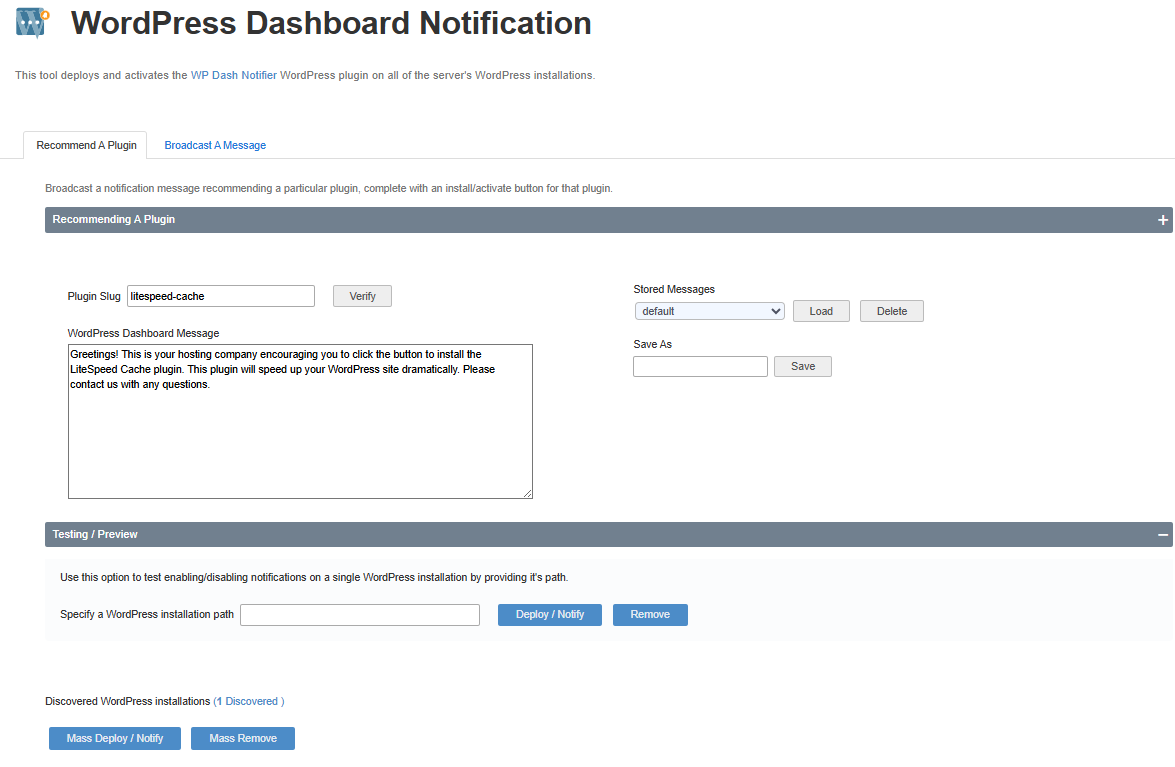
- Plugin Slug: The unique slug of a valid WordPress plugin. A download/activate button for this plugin will be included in the displayed notification message. A plugin's slug can be found by going to the plugin's page in the WordPress Plugin Directory and taking the last part of the URL. An entered slug can be verified by clicking the Verify button.
- WordPress Dashboard Message: A message displayed when recommending a plugin. Simple text and HTML are supported.
- Stored Messages: Saved messages (including Plugin Slug) that can be loaded or deleted. The "default" message cannot be deleted.
- Save As: Save the current WordPress Dashboard Message and Plugin Slug using a unique ID (a-zA-Z0-9_-).
- Testing / Preview: This option allows you to Deploy / Notify a plugin recommendation or Remove a notification from a single WordPress installation by providing its path. As the name implies, this is useful for testing how messages will be displayed before notifying en masse.
- Mass Deploy / Notify: Recommend a plugin to all discovered WordPress installations. This will install the Dash Notifier plugin for WordPress on all discovered installations and display the recommendation message in their WordPress Dashboard.
- Mass Remove: Remove plugin recommendation message (and Dash Notifier plugin) from all discovered WordPress installations.
For our example in the screenshot above, we used the Plugin Slug litespeed-cache, and the following WordPress Dashboard Message:
Greetings! This is your hosting company encouraging you to click the button to install the LiteSpeed Cache plugin. This plugin will speed up your WordPress site dramatically. Please contact us with any questions.
Once deployed, there were three possible end results:
- The user didn't have the recommended plugin installed. Our "Greetings" message was displayed along with an Install LiteSpeed Cache Now button.
- The user did have the recommended plugin installed, but it was deactivated. Our "Greetings" message was displayed along with an Activate LiteSpeed Cache Now button.
- The user had the recommended plugin installed and activated. No message was displayed.
Broadcast a message
- WordPress Dashboard Message: A message displayed when recommending a plugin. Simple text and HTML are supported.
- Stored Messages: Saved messages that can be loaded or deleted.
- Save As: Save the current WordPress Dashboard Message using a unique ID (a-zA-Z0-9_-).
- Testing / Preview: This option allows you to Deploy / Notify a notification message or Remove a notification from a single WordPress installation by providing its path. As the name implies, this is useful for testing how messages will be displayed before notifying en masse.
- Mass Deploy / Notify: Broadcast a notification message to all discovered WordPress installations. This will install the Dash Notifier plugin for WordPress on all discovered installations and display the notification message in their WordPress Dashboard.
- Mass Remove: Remove notification message (and Dash Notifier plugin) from all discovered WordPress installations.
Notes
- WordPress users who click the Dismiss button will not be re-notified if the provided dashboard message (and plugin slug when recommending a plugin) match those of the dismissed message.
- WordPress users who click the Never Notify Me Again button will have the Dash Notifier plugin uninstalled and a
.dash_notifier_bypassfile created in their installation's root directory. These users will not be notified of any further messages while this file exists.
Testing caching
To test your domains, you should see X-LiteSpeed-Cache: hit in the response header. Check here for detailed verification steps.
If X-LiteSpeed-Cache: hit cannot be seen, you may need to do more troubleshooting. For example: check if the LSCache feature has been enabled in your license, if other cache plugins have been disabled, or if cache root and cache policy have been set, etc.
Customize LiteSpeed Cache plugin for WordPress before installation
Copy the LiteSpeed Cache Plugin for WordPress' configuration file litespeed-cache/data/const.default.json to the LiteSpeed Cache Plugin for WordPress local source directory at /usr/src/litespeed-wp-plugin/ and change the new configuration as necessary.
Edit this file to add settings, or remove settings, or change default setting values for the LiteSpeed Cache Plugin for WordPress. These new defaults will be applied to all first-time installations. Settings can be safely removed or otherwise left out of this file if you do not plan to change the default values for those settings.
Tip
The default values for any settings not contained in your custom const.default.json will be automatically set internally by the LiteSpeed Cache Plugin for WordPress.
Note
This feature only affects new LiteSpeed Cache Plugin for WordPress installations and will not override or change any plugin settings for existing installations.